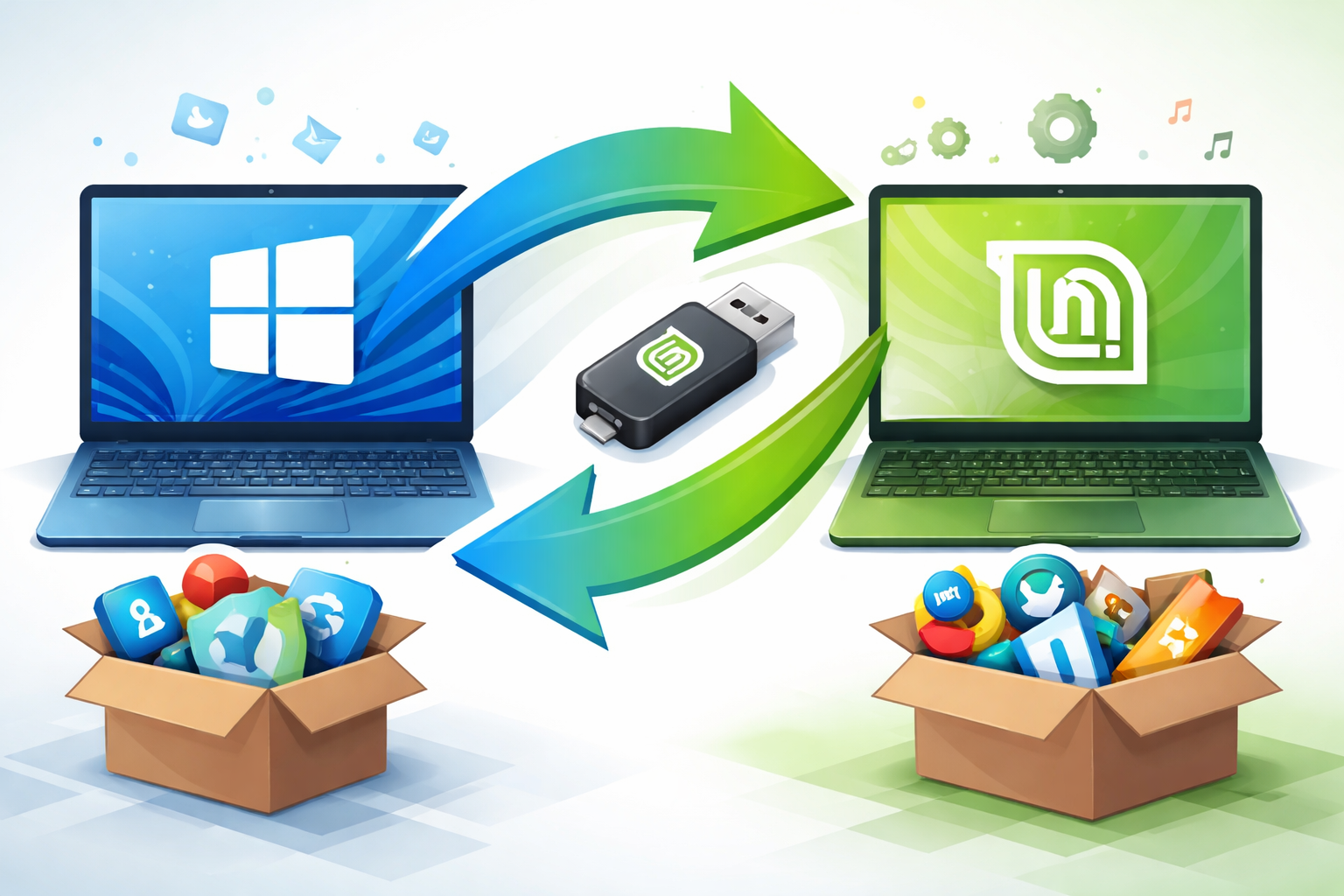
Switching from Windows 11 to Linux Mint: A Practical Guide to Freedom, Speed, and Simplicity

For millions of users, Windows 11 represents the modern standard for personal computing. It’s polished, widely supported, and deeply integrated into the Microsoft ecosystem. But it’s not for everyone. Whether it’s due to privacy concerns, system requirements, performance issues, or simply a desire for more control, many users are making the leap to Linux Mint—one of the most user-friendly Linux distributions available today.
If you’re considering making the switch, this guide will walk you through the why, the how, and what to expect.
Why Leave Windows 11?
1. System Requirements and Performance
Windows 11 introduced strict hardware requirements, including TPM 2.0 and newer CPUs. Many perfectly functional machines were left behind. Linux Mint, on the other hand, runs efficiently on older hardware, often breathing new life into aging PCs.
2. Privacy Concerns
Windows 11 includes telemetry features that collect usage data. While some of this can be disabled, it’s not always transparent. Linux Mint is open-source, meaning its code is publicly available and far more privacy-respecting by design.
3. Forced Updates and Control
Windows updates can interrupt workflows and sometimes install automatically. Linux Mint gives you full control over when and how updates are applied.
4. Cost
While Windows licenses are often bundled with new PCs, they aren’t free. Linux Mint is completely free to download, install, and use.
Why Choose Linux Mint?
Not all Linux distributions are beginner-friendly—but Linux Mint stands out.
1. Familiar Desktop Experience
Linux Mint’s Cinnamon desktop environment resembles the traditional Windows layout, with a taskbar, start menu, and system tray. This makes the transition far less intimidating.
2. Stability and Reliability
Based on Ubuntu, Linux Mint benefits from a stable foundation and extensive community support.
3. Software Availability
You’ll find thousands of free applications available through the Software Manager, including alternatives to popular Windows programs.
Examples:
- Microsoft Office → LibreOffice
- Photoshop → GIMP
- Notepad++ → Xed or VS Code
4. No Antivirus Needed (Typically)
Linux systems are less targeted by malware, and their permission structure reduces risk significantly.
Preparing for the Switch
Before installing Linux Mint, take a few important steps:
1. Back Up Your Data
Save important files to an external drive or cloud storage. Switching operating systems may erase your data.
2. Check Software Compatibility
Some Windows-only programs won’t run natively on Linux. However, tools like Wine or virtual machines can help bridge the gap.
3. Download Linux Mint
Visit the official Linux Mint website and download the latest ISO file.
4. Create a Bootable USB
Use tools like:
- Rufus (Windows)
- balenaEtcher (cross-platform)
Installing Linux Mint
Step 1: Boot from USB
Insert your USB drive and restart your computer. Enter the BIOS/UEFI menu (usually by pressing F2, F12, DEL, or ESC) and select the USB device.
Step 2: Try Before You Install
Linux Mint allows you to run a live session without installing. This is a great way to test hardware compatibility.
Step 3: Start Installation
Click “Install Linux Mint” and follow the prompts:
- Choose language
- Connect to Wi-Fi
- Select installation type:
- Erase disk and install (full replacement)
- Install alongside Windows (dual boot)
Step 4: Complete Setup
Set your username, password, and time zone. The installer will handle the rest.
Life After Windows: What to Expect
1. Learning Curve
While Linux Mint is beginner-friendly, some differences exist:
- Software installation uses a package manager instead of .exe files
- File system structure differs from Windows
2. Gaming on Linux
Gaming has improved dramatically thanks to platforms like Steam and Proton compatibility. Many popular titles now run smoothly on Linux.
3. Customization
Linux Mint allows deep customization—from themes and icons to system behavior. You’re in full control.
4. Community Support
Linux has a massive online community. Forums, Reddit, and documentation make troubleshooting easier than ever.
Pros and Cons of Switching
Pros
- Free and open-source
- Faster on older hardware
- More privacy and control
- No forced updates
Cons
- Some software incompatibility
- Learning curve for new users
- Limited support for certain hardware (rare, but possible)
Final Thoughts
Switching from Windows 11 to Linux Mint isn’t just a technical change—it’s a philosophical one. You’re moving from a controlled ecosystem to one that prioritizes freedom, transparency, and user choice.
For many, the result is a faster, more secure, and more enjoyable computing experience.
If you’ve been frustrated with Windows or simply curious about Linux, there’s never been a better time to explore what Linux Mint has to offer.
If you want, I can also create a step-by-step checklist tailored to your specific PC or help you choose between dual boot vs full replacement.